General | What is Multiply? | | Multiply is a fun and easy way to keep in touch with your friends and family by sharing things like photo albums, videos, music, blogs, events and more. If this didn't answer your question, please contact us. | | What makes Multiply special? | | What makes Multiply special is this simple concept: by bringing together everyone you know, in one place, you can share and discuss things like pictures, announcements and events with each other, with almost no effort. It works when you invite your friends and family to sign up, and encourage them to invite their friends and family. Eventually you'll be connected with everyone in your social circle (your "network"). When you have a new photo album, video, event or anything else to share, just post it on your personal web site. We use your network to notify your immediate contacts, and their contacts, and beyond - as far into the outer-reaches of your social circle as you'd like word to travel. It gets people from all corners of your life involved in fun and lively discussions about each other's posts. You won't get that kind of interaction by sharing your stuff over e-mail or any other way. If this didn't answer your question, please contact us. | | Why should I invite my friends and family to join Multiply? | | By inviting your friends and family and encouraging them to invite their friends and family, you'll eventually be connected with everyone in your social circle (your "network"). That's when it becomes almost effortless to share your photos, videos, calendar and more with every person who you know, or is connected to you in some way. Nowhere else can you share things so easily. It's just as effortless to find out what's new with everyone you know. Just go to the Multiply Inbox - that's where the action is because it automatically updates whenever people you know are sharing and discussing their own stuff. You'll find that there's never been an easier or more fun way to keep in touch. If someone invited you to join Multiply, you already know at least one person on the site, and maybe lots more. Go to your Contacts page and look for the name of the person who invited you. Click the headshot to view his contacts and see who else you might know on the site. If you find someone else you know, click their name and add that person as your contact. Remember that you can make any of your posts as public or private as you like. You can display a photo album, for example, for just your family members, but they have to be your contacts first before we can recognize them as your family. You can send someone an invitation by e-mail or IM - and you can automatically import your address book from Yahoo! Mail, Hotmail, GMail, and a bunch of other sites. Just click Invite at the top of any page to invite someone. If this didn't answer your question, please contact us. | | What is the Network Calendar? | | It's where you go to see all of the events and occasions planned by your friends, family and everyone else connected to you in some way. If this didn't answer your question, please contact us. | | I get my own personal site on Multiply? | | Yes, your site is located at http://YourName.Multiply.com. "YourName" is the ID you choose when you register on Multiply. If this didn't answer your question, please contact us. | | What are Live RepliesTM? | | Live Replies allow your discussions on Multiply to happen in real-time. When you are viewing a photo album, video, or any other posting, you will see replies appear as soon as they are added - similar to how IM or a chat room works - letting you follow a discussion without having to refresh the page. If this didn't answer your question, please contact us. | | Why am I not receiving e-mails from Multiply? | | Some of the most commonly used e-mail programs use spam filters to make sure that unwanted messages don't make it to your inbox. The problem is that sometimes messages you really do want are mistakenly identified as spam, and are delivered to your Spam folder (depending on your e-mail program, the folder might be called "junk" or "bulk" or something else). In general, you can make sure Multiply's e-mails are sent to your inbox just by adding multiply@multiply.com to your Address Book or Contact list. And if you already have a message from Multiply in your spam/bulk/junk folder, open it up and click on the button that says "not spam" (or something similar). Here are some specific instructions for Yahoo! Mail and Hotmail users: Yahoo Mail- Click on "Options" in the top-right part of the screen.
- Click on "Filters" in the middle column.
- Click on the "Add" button to add a new filter.
- In the top row, labeled "From header", make sure "contains" is selected in the pull-down list. Click in the text box next to that pull-down list and enter: multiply@multiply.com. At the bottom, where it says "Move the message to", select "Inbox" from the pull-down list. Click the "Add filter" button.
Hotmail- Click on "Options" in the top-right part of the screen.
- Click on "Mail" on the left part of the screen.
- Click on "Junk E-mail Protection".
- Click on "Safe List".
- Type multiply.com in the text box at the top and click "Add".
If this didn't answer your question, please contact us. | | What kinds of music files can I share? | | You can upload the following types of music files to your Multiply site: mp3, m4a, wma, wav, aac, ogg, aif and au. Please be aware that sharing someone else's copyrighted music is illegal and prohibited on Multiply, per our Terms of Service. If this didn't answer your question, please contact us. | | How can I use style sheets? | | Just click on the Customize Site link on your homepage, then select Custom CSS in the yellow bar that appears near the top of your page. You'll see a text-entry screen where you can override or enhance current style sheet settings with your own designs. Learn more.If this didn't answer your question, please contact us. | | What are tags? | | Tags are just key words or phrases you can use to identify your posts, so at any time you can easily display everything you've shared about a certain topic. You can add tags to anything you share on Multiply - a photo album, video, blog, whatever. For example, if you add the tag "Florida" to photo album, then whenever you want to see everything you've posted about Florida, you'll be able to click on that tag on your Home page to see that photo album and anything else you've tagged with "Florida". You can add as many tags to your posts as you'd like. When you visit someone's Multiply site, you'll see all of their tags listed. Click on a tag to see everything that person has shared about that particular topic. The "Popular Tags" box, located on the Multiply Inbox, will show you the most common tags being used by people in your network. Click here for some more thoughts on using tags. If this didn't answer your question, please contact us. | | Does it cost anything to sign up? | | Absolutely not. Multiply is free to use! If this didn't answer your question, please contact us. | | Is Multiply just like those "social networking" sites I've heard of? | | Actually it's much different, and much better. "Social networking" sites are generally used for one thing: meeting new people. Multiply is new type of communication that makes it easy to share photos, videos, blogs and more with people you already know, such as close friends and family, and other people in your personal "network" who you never had a good way to keep in touch with before. If this didn't answer your question, please contact us. |
Premium Accounts | What do I get with a Multiply Premium Account? | | A Multiply Premium account, combined with the AutoUploader, gives you a permanent backup solution for all of the photos and videos you upload to Multiply - not just those you choose to share. Upgrade to a Multiply Premium account for just $19.95 a year, and you'll get: - Permanent storage of your photos and videos, in their original full-resolution format.
- The ability to download original versions of all photos and videos on Multiply (not just your own).
- The ability to download entire photo albums as zip files (Click any Zoom-In link to access this).
- Double the video upload limit - uploads as large as 200mb or 20 minutes long.
- No ads while you're on Multiply, and no ads for anyone viewing your site.
Click here for all the details.If this didn't answer your question, please contact us. | | How do I sign up for a Multiply Premium Account? | | | | How can I pay for a Multiply Premium Account? | | Either with a credit card or PayPal. The credit cards we accept are: American Express, Visa or Mastercard. If you don't have a credit card, Paypal allows you to pay through a bank account or debit card. If you have any questions about these, or other payment methods, please contact our customer service team.If this didn't answer your question, please contact us. | | When you say I'll see no ads on Multiply, is that only on certain pages? | | No, it means all pages! If you upgrade to a Premium account, you will never see an ad on Multiply. And people visiting your site won't see any ads there either, whether they have a Premium or free account. If this didn't answer your question, please contact us. | | How can I download an entire photo album with one click? | | Just click any Zoom In link, and above the zoomed-in photo Premium members will see a link to Download entire album as a zip file (a zip file is a way of packaging up all the photos in one file for quick downloading). Just click on that link to save the entire album on your hard drive - the name of the zip file that gets saved will be the same name as the album (for example, AlbumName.zip). Once saved, you can double click on the file to "unzip" it and view all the photos on your computer. If this didn't answer your question, please contact us. | | How can I customize the right margin of my site? | | Multiply uses the area in the margin of your site - below your headshot - for advertising. But if you subscribe to a Premium account, you can take control of that space and customize it yourself. Just click on the Customize My Site link on your Multiply site, then you can edit the margin and enter your own text or html. List your favorite quotes... let everyone know what books you're reading... link to your friends' sites... be as creative as you want. If this didn't answer your question, please contact us. | | What is the refund policy for Premium accounts? | | Premium accounts are non-refundable, per our Terms of Service. If this didn't answer your question, please contact us. | | Can I buy a gift Premium Account for a friend? | | |
Photo Prints and Gifts | What types of photo gift items does Multiply offer? | | On Multiply you can use your photos (or your friends' photos) to make custom Photo Books, Calendars and Prints - and coming soon: Photo Cards for holidays and other occasions. Click the  Shop link Shop link for more information about each product. If this didn't answer your question, please contact us. | | How do I order photo prints and gifts? | | Just click on the Shop link at the top of any page; or click on the prints & gifts link beneath photos and albums you see on Multiply (not just your own). If you don't see a prints & gifts link under an album, it means the person who posted that particular album is not allowing others to order from the album. If this didn't answer your question, please contact us. | | Didn't Multiply already offer items such as Photo Books and Calendars? What is different now? | | Yes, we previously offered photo gift items through a partner site that had a huge selection of nice photo products to choose from. However, we decided that we'd rather concentrate on just a few of the most popular photo products, and make them truly great. So we designed our own tool for creating Photo Books and Calendars (and coming soon: Greeting Cards) - and we think we've made it easier for you to create these items than you'll find anywhere else. We offer standard photo prints as well. If this didn't answer your question, please contact us. | | What exactly is a Photo Book anyway? | | A Photo Book is a great way to preserve your memories from a special occasion - such as a wedding, family trip or newborn baby - in a high-quality, hard-cover book. You choose which photos are featured in the book and how they are displayed. You can even add captions to help tell your story. Your Photo Book doesn't have to mark a special occasion, but if it does, you can choose an appropriate custom theme, such as Wedding, Travel, Baby Boy or Girl, and many others. Photo books make great gifts for any occasion. If this didn't answer your question, please contact us. | | How can I create a Photo Book? Is it hard to do? | | We've made sure it is as easy as possible to create a Photo Book on Multiply. Here's how: - Click on Shop and select Photo Books.
- Select a theme for your book and a cover type. Images show examples of each theme and the types of covers, so you can see what they look like before choosing.
- Select the photos you want to include in the book. You can upload photos from your computer, add photos you found on the web, or you can choose photos from albums you (or any of your contacts) have already uploaded to Multiply. Note that, for your contacts' photos, you can only choose from albums they have marked as OK for others to order prints and gifts from.
- Start building your book. This is where the real fun begins - simply drag and drop your photos from the Phototray into the open spots in the book. If you don't like how the open spots are positioned, select Page Layout and you can change any page. Or, if you want us to do all the work for you, just click on AutoFill and we'll insert all of the photos from your Phototray into the book. Once the book is filled, you can buy it as is, or make changes.
See? Easy! If this didn't answer your question, please contact us. | | Why are Multiply Photo Books better than others? | | - Simplicity - If you thought you didn't have enough time, or weren't creative enough to make a Photo Book, think again: creating a Photo Book on Multiply is as simple as selecting a theme, a cover type and then dragging and dropping your photos into the book. You'll be amazed at how quickly you can create a great-looking book.
- On-line sharing - Buy a Photo Book on Multiply and you not only get a high-quality hardcover book for your coffee table, but you can also share the online version of your book with your network (or more privately) just as you would with a photo album, video or anything else. Unlike other sites, on Multiply more of the people you care about can participate in ongoing discussion about your book!
If this didn't answer your question, please contact us. | | How much do you charge for shipping and how long does it take? | | | Note: To ensure delivery before Valentine's Day for Cards, Calendars or Prints, please order by February 9th, 2009 (order by February 4th for Photo Books) and choose One or Two-day Shipping. |
Shipping cost depends on the product you are purchasing, the shipping option you choose, and whether you're shipping to the U.S. or internationally. Listed below are the shipping options we offer, followed by costs for each product: Shipping Options:Standard - Normal shipping time is about 3 to 10 business days for addresses in the U.S. and Canada (after processing).
- Up to 14 business days during holiday periods.
- 6-14 business days for International shipments.
- Primary carriers are UPS and USPS.
- Will deliver to FPOs and APOs (Fleet Post Office / Army Post Office).
Two-Day - Normal shipping time is 2 business days (after processing), additional days are needed to personalize your order.
- Primary carriers are FedEx and UPS.
- Cannot deliver on weekends.
- Cannot deliver to APOs or FPOs.
- Cannot deliver to P.O. Boxes. Please use a street address if you would like Two-day delivery.
- Not available for addresses outside the U.S.
One-Day - Normal shipping time is next business day (after processing), additional days are needed to personalize your order.
- Primary carriers are FedEx and UPS.
- Cannot deliver on weekends.
- Cannot deliver to APOs or FPOs.
- Cannot deliver to P.O. Boxes. Please use a street address if you would like One-Day delivery.
- Not available for addresses outside the U.S.
Shipping Charges: * | | Photo Books | | Shipping Option | No. of Photo Books | U.S. | Canada | International | | Standard | First book | $7.99 | $12.99 USD | $33.99 USD | | Each additional book | $1.99 | $2.99 USD | $14.99 USD | | Two-Day | First book | $13.99 | N/A | N/A | | Each additional book | $2.99 | N/A | N/A | | One-Day | First book | $24.99 | N/A | N/A | | Each additional book | $3.99 | N/A | N/A |
| | Calendars | | Shipping Option | No. of Calendars | U.S. | Canada | International** | | Standard | First calendar | $4.35 | $5.44 USD | $8.70 USD | | Each additional calendar | $1.95 | $2.44 USD | $3.90 USD | | Two-Day | First calendar | $10.95 | N/A | N/A | | Each additional calendar | $1.95 | N/A | N/A | | One-Day | First calendar | $19.95 | N/A | N/A | | Each additional calendar | $1.95 | N/A | N/A |
| | 4x8 Photo Cards | | Shipping Option | No. of Cards | U.S. | Canada | International** | | Standard | First 50 cards | $5.00 | $6.25 USD | $10.00 USD | | Each additional 10 | $0.20 | $0.25 USD | $0.40 USD | | Two-Day | First 50 cards | $5.00 | N/A | N/A | | Each additional 10 | $0.20 | N/A | N/A | | One-Day | First 50 cards | $17.00 | N/A | N/A | | Each additional 10 | $0.20 | N/A | N/A |
| | 5x7 Folded Cards | | Shipping Option | No. of Cards | U.S. | Canada | International** | | Standard | First 25 cards | $2.25 | $2.81 USD | $4.50 USD | | Each additional 25 | $0.75 | $0.94 USD | $1.50 USD | | Two-Day | First 25 cards | $7.95 | N/A | N/A | | Each additional 25 | $0.75 | N/A | N/A | | One-Day | First 25 cards | $14.95 | N/A | N/A | | Each additional 25 | $0.75 | N/A | N/A |
| | Prints (4x6, 5x7, 8x10 and Wallet sizes) | | Shipping Option | No. of Prints | U.S. | Canada | International** | | Standard | First 10 prints | $1.75 | $2.19 USD | $3.50 USD | | Each additional set of 10 | $0.50 | $0.62 USD | $1.00 USD | | Two-Day | First 10 prints | $9.95 | N/A | N/A | | Each additional set of 10 | $0.50 | N/A | N/A | | One-Day | First 10 prints | $16.95 | N/A | N/A | | Each additional set of 10 | $0.50 | N/A | N/A |
| | 11x14 prints | | Shipping Option | No. of Prints | U.S. | Canada | International** | | Standard | First 11x14 print | $1.75 | $2.19 USD | $3.50 USD | | Each additional 11x14 print | $0.25 | $0.31 USD | $0.50 USD | | Two-Day | First 11x14 print | $9.95 | N/A | N/A | | Each additional 11x14 | $0.25 | N/A | N/A | | One-Day | First 11x14 print | $16.95 | N/A | N/A | | Each additional 11x14 | $0.25 | N/A | N/A |
| | Prints (16x20, 20x30 and 24x36) | | Shipping Option | No. of Prints | U.S. | Canada | International** | | Standard | First print | $2.95 | $3.70 USD | $5.90 USD | | Each additional print | $1.00 | $1.25 USD | $2.00 USD | | Two-Day | First print | $9.95 | N/A | N/A | | Each additional | $1.00 | N/A | N/A | | One-Day | First print | $16.95 | N/A | N/A | | Each additional | $1.00 | N/A | N/A |
* If your order contains a mix of calendars, cards or prints, only the highest base shipping rate is used. For example, if you order two calendars and 60 4x8 photo cards with Standard shipping, you would be charged a $5.00 base (the higher of the base charges between calendars and photo cards) to cover the first calendar and the first 50 cards, plus $1.95 for the second calendar and $0.20 for the last 10 cards. The total shipping charges would be $7.15. ** International shipping rates for calendars, cards and prints are estimates. Actual rates may be higher for certain countries. If this didn't answer your question, please contact us. | | Do you ship internationally? | | Yes, Multiply can ship your photo product outside the U.S. International orders are shipped First Class, although other shipping methods may be used when First Class isn't available. Click here for shipping options and costs. If this didn't answer your question, please contact us. | | What do you mean by after processing? How long does that take? | | Print products generally take 1-5 business days to be processed. That should be factored along with the shipping times listed. If this didn't answer your question, please contact us. | | Can I order prints of my friends' photos? | | Sure, if you see a prints & gifts link beneath someone's album, that means the person who posted the album is allowing you to order prints and gifts using those photos. If this didn't answer your question, please contact us. | | What are your prices for photo prints and gift items? | | For prices, just click on the Shop link and then click more information next to the product you are interested in. If this didn't answer your question, please contact us. | | Why should I use Multiply to order prints of my photos? | | Because on Multiply you can get high-quality prints of your digital photos and share and discuss your photos with your entire network in ways not available anywhere else. - Your photos come to life when your friends and family - and their friends and family - can comment on them as soon as they've been uploaded to your site.
- No more e-mails with huge attachments or links to impersonal printing sites.
- Make your albums as public or private as you want. Multiply recognizes who visits your site and displays each album only for the people you've allowed to see it.
Conventional photo printing sites are great if all you want to do is order prints, but they're not so great if you want more of the people you know to be able to see and discuss your photos, or if you want to see and discuss theirs. If this didn't answer your question, please contact us. | | Will the quality of my prints suffer if I crop/format them before uploading them to Multiply? | | It is very likely that it will. If you are uploading photos and plan to order prints at some point, we suggest you upload the original image from your camera and do not crop, resize or otherwise alter the image. Instead, on the Shop page, you can select "Use Auto Crop" (see below) to make sure your original image fits the print size you choose. If this didn't answer your question, please contact us. | | What is Auto Crop? | | When ordering prints, you have the option to choose Auto Crop, which means we will re-size your photos to fit the print sizes you chose. The dimensions (height x width) of your digital image are not always the same as the print size you want to make from it. Therefore, some cropping (trimming) of your original image is often required to make it fit the paper size. We offer a variety of print sizes and each size may require a slightly different amount of cropping. Also, digital cameras can take images with different dimensions than film cameras, so some cropping is necessary to make them all fit on standard paper sizes. While the cropping we do is minimal, it may cut off important parts of the image located near the edge. This is why we offer more than one option. Note: Cropping applies to both horizontal (landscape) and vertical (portrait) photos. We provide the following cropping options to make sure your prints include all the important parts of your original image: - Use Auto Crop - our default cropping method. Check this box to assure that your image fills the print. If the proportions of any image are extremely different than the print size you have chosen, Auto Crop will automatically print that entire image filling the rest of the paper with a white border. This ensures you will not lose any important details on those prints.
- No Cropping: With this option there is no cropping (Shrink with Borders). Your entire image is printed; filling the rest of the paper with a white border. This option guarantees you will see your entire image, no matter the print size you choose.
If this didn't answer your question, please contact us.
| | What is Multiply's return policy for photo gifts and prints? | | Our return policy is simple: if you are not satisfied with an order because of a quality issue, Multiply will replace the product free of charge. In the unlikely event you need to return a product, we ask this be done within 14 days of purchase and request you return the product in a proper shipping box so it arrives safely. An explanation of what the problem is would be helpful. Please return the product to: Multiply, Inc. Attn: Customer Service - Returns 6001 Park of Commerce Suite 300 Boca Raton, FL 33487 The following is an important exception to our customer satisfaction guarantee: If the image you selected for a print, greeting card or gift does not meet the minimum recommended resolution and results in a poor quality image, Multiply will not replace your product free of charge. If this didn't answer your question, please contact us. |
|  |
AutoUploader | What is the AutoUploader and how does it work? | | Multiply's AutoUploader is the easiest way to upload photos and video. It's easy because once you set it up, you don't have to do anything at all! You just tell the AutoUploader the folder (or folders) on your computer where you store your photos and video, and then it will scan that folder(s) every minute and automatically upload photos and videos into your Media Locker. When you're ready to share all (or just some) of your AutoUploaded photos and videos, just go to your Media Locker (click on My Media Locker below your headshot photo) to publish them. Click here to install the Autouploader now. If this didn't answer your question, please contact us. | | How do I install and set up the AutoUploader? | | Click here to install the Autouploader. Once installed, right-click on the AutoUploader icon in your system tray and select Setup. Then you can specify the folder (or folders) on your computer that the AutoUploader should check for new photos and videos. Anything uploaded from that folder will be stored under Latest Uploads in your Media Locker. Just go there when you are ready to share the photos and/or videos with friends and family. If this didn't answer your question, please contact us. | | Will my AutoUploaded photos and videos be shared without my knowledge? | | No, nothing the AutoUploader finds and uploads will ever be shared until you decide to share it. All AutoUploaded photos and videos go straight into your Media Locker, where they stay until you decide to share them (if you have upgraded to Multiply Premium, they are stored permanently in the Media Locker; otherwise they are stored for 30 days. If you haven't upgraded, click here to learn more about Multiply Premium.Whenever you want to share all, or just some, of what's in your media locker, just click My Media Locker on your Multiply site. If this didn't answer your question, please contact us. | | Can I use the AutoUploader on more than one computer? | | Sure. You can install the AutoUploader on any computer where you store photos and videos and want to be able to easily share them on Multiply. The AutoUploader will scan the folder(s) that you specified on any computer that is powered on with the AutoUploader running and signed in to your account. If this didn't answer your question, please contact us. | | Can I install the AutoUploader on a Linux computer? | | Ok, so you use Linux... good for you! Multiply's AutoUploader is built on Adobe AIR, which is available for Linux. AIR for Linux is currently alpha-quality, but it is possible to run the AutoUploader nonetheless... with a few caveats. Here's what you'll have to do: - Grab Adobe AIR for Linux Alpha. Make sure it's been made executable:
mycomputer:~$ chmod +x adobeair_linux_a1_033108.bin
Then, execute the file using your super-user account:
mycomputer:~$ su
mycomputer:~# ./adobeair_linux_a1_033108.bin
...or sudo, if your distro of choice uses that:
mycomputer:~$ sudo ./adobeair_linux_a1_033108.bin
- Get the AutoUploader .air file directly from here. Your browser should offer to open the file for you using the program "Adobe AIR Application Installer." Do so.
- Choose your install path and preferences. Then you're done!
Unfortunately, please note that when the program runs, no notification area icon will appear, due to a current limitation in the Linux version of AIR. Also, at the present time, closing the AutoUploader window does not actually terminate the process. A simple mycomputer:~$ pkill Multiplywill do the trick. If this didn't answer your question, please contact us. | | What is the Media Locker? | | The Media Locker is where you can get a complete view of everything you've uploaded to Multiply, and manage all of your posts in one central location - including editing (or deleting) many posts at once. There are three main areas of the Media Locker: 1. Media Locker - Includes: - All Photos: You'll see on one page every photo you've uploaded to Multiply. Create new albums with your photos, add them to existing albums or delete multiple photos at once.
- All Video: Re-publish an existing video or delete multiple videos at once.
2. Shared Items - Click on any content type (for example, Photo Albums, Blog Entries, Reviews, etc.) to see a list of your posts, including the dates and current access setting on each post. Select as many posts as you like to change the access or tags on all of them at once. You can delete multiple posts as well. 3. Drafts - All of the items currently saved as drafts (meaning you haven't shared them with anyone yet) will be listed here. Click on any to edit, publish or delete it. The Media Locker becomes even more powerful when you install Multiply's AutoUploader. Once the AutoUploader is installed, and you tell it where on your computer to find the photos and videos you want uploaded, it will start automatically putting everything it finds into your Media Locker, as follows: - Newly-uploaded photos and videos are put in the Latest Uploads folder.
- Uploaded Folders shows your photos and videos organized in the same way they are on your computer.
- The All Photos and All Videos views will include all AutoUploaded stuff, plus anything you've shared on Multiply in the past.*
*For Multiply Premium users, AutoUploaded photos and videos are stored in the Media Locker permanently - in their highest-resolution format. Otherwise, AutoUploaded (and hi-res) photos and videos are kept in the Media Locker for 30 days - to give you time to share them with friends and family. Click here to upgrade to Multiply Premium.If this didn't answer your question, please contact us. | | Can I use the Media Locker if I don't install the AutoUploader? | | Yes, absolutely. Whether or not you've installed our AutoUploader, you can still use the Media Locker to manage all of your posts. Just click My Media Locker on your homepage. If this didn't answer your question, please contact us. | | How long are my photos and videos kept in the Media Locker? | | If you have a Multiply Premium account, your full-resolution photos and videos are kept in the Media Locker permanently. Otherwise, only low-resolution versions of your shared photos and videos are kept permanently in the Media Locker, while AutoUploaded and full-resolution versions are kept there for 30 days. Make sure the highest-resolution versions are saved forever by upgrading to Multiply Premium. If this didn't answer your question, please contact us. | | How do I uninstall the AutoUploader? | | You can uninstall the AutoUploader just as you would remove any other program from your computer. On a Windows computer, open the Control Panel and select Add/Remove Programs. Look for the AutoUploader in the list of programs and click to remove it. On a Mac, just grab the AutoUploader icon and drag it into the trash. If this didn't answer your question, please contact us. | | What types of videos can I upload with the AutoUploader? | | The AutoUploader is able to upload the following types of video files: jpe, jpg, jpeg, gif, png, 3g2, 3gp, 3gp2, 3gpp, asf, avi, divx, dv, flv, gvi, m1v, m2v, m4e, m4v, mjp, moov, mov, movie, mp21, mp4, mpe, mpeg, mpg, mpv2, mpv, ogm, qt, rm, wmv. If this didn't answer your question, please contact us. |
Multiply Mobile | How do I access Multiply Mobile on my phone? | | Just visit multiply.com/m via your cell phone or mobile device's web browser. If this didn't answer your question, please contact us. | | Which features does Multiply Mobile support? | | 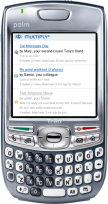 | Nearly all of Multiply's web-based features are available on Multiply Mobile:- View blog entries, videos, photos, reviews, events and more from friends and others in your network.
- multiply.com/m takes you right to your messages. - Customize settings to determine who can see the photos, videos and blog entries you post.
- just click on the Settings link. - Add replies.
- click on a message to view it and add replies. - Add contacts.
- just click on Invite. - Post content to your site.
- add blog entries directly through Multiply Mobile, or add photos, videos and more using the Post via E-mail feature.
|
If this didn't answer your question, please contact us. | | Can I use Multiply on my phone or mobile device? | | 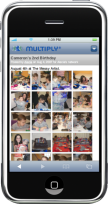 | Any type of phone or mobile device with a web browser and Internet access should be able to access multiply.com/m, which is specially-designed for the small screen of your mobile device. And if you happen to use an iPhone, multiply.com/m should feel much like a native application.
If you are having trouble accessing Multiply on your phone, please contact customer service, let us know what type of phone you are using, and provide as much specific information as possible about the trouble you are having. |
If this didn't answer your question, please contact us. | | How do I post content from my phone? | | 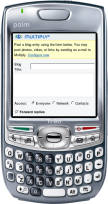 | Click on Post Content to publish a blog entry, or add photos, videos and other types of posts with the Post Via E-mail feature.
To post via e-mail, first create a PIN (Personal Identification Number), which can be from 3-20 characters long and contain letters or numbers. Then post to your Multiply site by sending e-mails to: PIN@username.multiply.com.
Note: Globe subscribers in the Philippines can also post from a phone via MMS. Click here to learn how. |
If this didn't answer your question, please contact us. |
Screensaver | How does the Multiply Screensaver work? | | Once a day at a time you choose (the default is 3:00 AM Eastern U.S. time), new photos from people in your network are downloaded to your computer so they can be displayed on the screensaver. The previous day's photos are always deleted so you don't have to worry about them taking up space on your hard drive. The screensaver will start when your computer is idle for a certain amount of time, just like any other screensaver. It will rotate through each photo and show you the name of the album and the person who posted it. You can click on any photo to look at the full album. If this didn't answer your question, please contact us. | | How do I change the settings? | | Look for a Multiply icon in your Windows taskbar (usually the lower-right area of your desktop). Click on the icon and select Settings. You can also right-click anywhere on your desktop, select Properties and then select the Screensaver tab. To change who you see Photos from, visit multiply.com and click Settings, then Multiply Screensaver. If this didn't answer your question, please contact us. | | What do I need to start using the screensaver? | | To download the Multiply Screensaver, you'll need a Windows XP computer with a high-speed/broadband internet connection. If this didn't answer your question, please contact us. | | Where can I get the Multiply Screensaver? | | Just click here to begin downloading the screensaver now. If this didn't answer your question, please contact us. | | Why can't I exit the screensaver by moving the mouse? | | While the screensaver is active, clicking on any photo launches your web browser to display the album that contains that photo. To do that, we had to prevent the screensaver from exiting when the mouse is moved. To exit the screensaver, just press any key on your keyboard (other than the left or right arrows). The left and right arrows scroll through the photos that have been downloaded by the screensaver application. If this didn't answer your question, please contact us. | | Does it cost anything to use the screensaver? | | No. The Multiply Screensaver is free for Multiply users. If this didn't answer your question, please contact us. | | Will I get any adware, malware or viruses if I download the screensaver? | | Absolutely not. The screensaver follows our stated policy of never using intrusive ads on our site, and does not contain any bundled software of any kind. If this didn't answer your question, please contact us. | | How can I un-install the screensaver? | | You can un-install the screensaver at any time. Just go to your Windows Control Panel, select Add/Remove Programs and select the Multiply Screensaver. If this didn't answer your question, please contact us. |
Privacy & Terms of Service | What is Multiply's position on privacy? | | Sharing information is what Multiply is all about, so we take very seriously the privacy of our members. Multiply members have complete control over the information they provide and how it is shared with other members. All information that Multiply collects will adhere to our privacy policy, and will be used for the sole purpose of providing members a highly personalized and interactive experience with our site. Multiply will never sell or lease our members' information to any third party without proper consent. If this didn't answer your question, please contact us. | | What information do I have to provide to sign up? | | We'll ask for the following: - First and last name - You control who can see your full name on the site.
- E-mail address - You must verify your e-mail before joining, to make sure it is actually yours.
- Home country and zip/postal code - This info will always be viewable by other members.
- Date of birth and gender - You control who sees your birthdate.
If this didn't answer your question, please contact us. | | Who can see my personal information? | | Other Multiply users will be able to see your first name, city, state/province, zip/postal code and country, gender and headshot photo (if you provide one). You control who can see your last name, e-mail address and birthday (just go to Settings and then My Account to determine who can see this information). Even though Multiply members can find your site by searching for your name or e-mail address, you can limit who can see anything you've posted on your site. For more information please review our Privacy Policy. If this didn't answer your question, please contact us. | | Why does the Terms of Service say I grant Multiply a license to display my content in "public areas"? | | Because you own the content you publish and must give us permission to display it in "public areas" of the site. Your agreement to our terms of service effectively gives us that permission. We won't do anything with your content other than display it on the Multiply site in the areas you choose. If this didn't answer your question, please contact us. | | What do you mean by "public areas" of Multiply? | | Any content that you did not intend to be viewed by a specific person or group of people is considered to be in a "public area." For example, if you post something for "everyone" or "network" or on a group's site, those are all considered public areas because you are not necessarily aware of everyone who can possibly see your published content. On the other hand, any content that you post exclusively for your contacts or specific individuals is considered "private." If this didn't answer your question, please contact us. |
|
